
How to price your app using competitor prices
Start from what your competitors charge for each item in the storefronts you sell in, put the prices in one currency, and keep watching, because a price you read once is a snapshot. AppCider records competitors' in-app purchase prices per storefront and tells you the day one changes.
You get the prices and their history, and you set your own price from them.
Price your app by hand, step by step
Look at what other apps charge, compare, and see what changes. You need a browser and a notes file, and every step is something you can check yourself. The steps also show where the work gets slow.
1. List your real competitors
Write down the apps a person would compare with yours when choosing. Search the stores the way a new user would, and note the apps the stores show next to yours. Leave out apps you only admire.
2. Record what each one charges, item by item
Open the competitor's App Store page in a browser. The address looks like apps.apple.com/us/app/name/id123456789. The two letters after apps.apple.com are the storefront code. Change them to de, br or jp and load the page again to see another country. Scroll to the In-App Purchases list and write down each item and its price as printed.
Do this for the storefronts that matter to you, such as your biggest markets and the ones you are thinking of entering. Apple's page lists at most 10 in-app purchases per storefront and rotates which ones, so a list of 10 may not be complete. Write the date next to every note.
On Google Play the app page shows one line for in-app purchases, such as "$0.99 - $49.99 per item". That is the cheapest and the most expensive item, not the list. Record both ends of it.
3. Compare in one currency
Prices in R$, € and ¥ can't be compared by eye. Convert every price to one currency, using one exchange rate and noting which one. Then put your competitors side by side, item for item: a yearly plan against a yearly plan, a lifetime unlock against a lifetime unlock.
4. Note where you are above or below
For each storefront, mark whether your price for the same kind of item is above, below or level with each competitor. A plain table is enough. It shows you where you would stand out, and where you would sit next to everyone else.
5. Watch for changes over time
One look tells you where prices are today. It doesn't tell you whether a competitor just raised a price, or whether it raised it in one country only. Go back to your notes on a schedule and compare. A price you didn't write down last time can't be compared.
6. Read what reviewers say about price
The store pages show a price. Reviews show how people react to it. Read the recent reviews of your competitors, and your own, for mentions of cost, subscriptions and value. Quote what they say in your notes, with the date.
Where the work gets slow
One competitor in one storefront is a page load. AppCider checks 175 App Store storefronts, so one competitor in all of them is up to 175 page loads for a single check, and then you convert and compare. Repeat that for several competitors, again and again, and the notes fall out of date.
How AppCider does it
You add a competitor by name or store link. AppCider then reads its store pages and keeps what it finds.
- App Store: for each storefront where the competitor sells the app and has ratings, the in-app purchases that storefront lists, up to 10, with the price as printed, the price in ≈ USD, and the same item in the US with the difference in percent.
- Google Play: the price range per country, with ≈ USD, because Play shows a range and not the list.
- History: the first read is a baseline and isn't reported as a change. After that each change is stored with the price before and after, and its ≈ USD at that day's exchange rate.
- Feed and alerts: a change shows in your Feed that day. One competitor's price changes in one store on one day are one Feed item, with a row for each storefront. You can also get an alert by email; alerts are kept to three a day across all types.
- Reviews: the reviews of the apps you follow are read and judged, and the relevant ones appear in your Feed next to the price changes.
When a storefront lists exactly 10, AppCider reports a change only when it is sure it is the same item, so every change you see is a real one. The in-app purchase price tracker page covers what is recorded in detail, and what to charge on the home page has the short version.
What a price change looks like
The example below uses made-up data. Streakwise is a made-up competitor, and its Premium Yearly price rose in three storefronts on the same day. You'd see it as one Feed item with a row for each storefront.
| Storefront | Before | After |
|---|---|---|
| Brazil | R$ 89,90 | R$ 119,90 |
| Germany | 29,99 € | 34,99 € |
| Japan | ¥3,900 | ¥4,500 |
Made-up example data from the AppCider screenshot below, not a real app's prices.
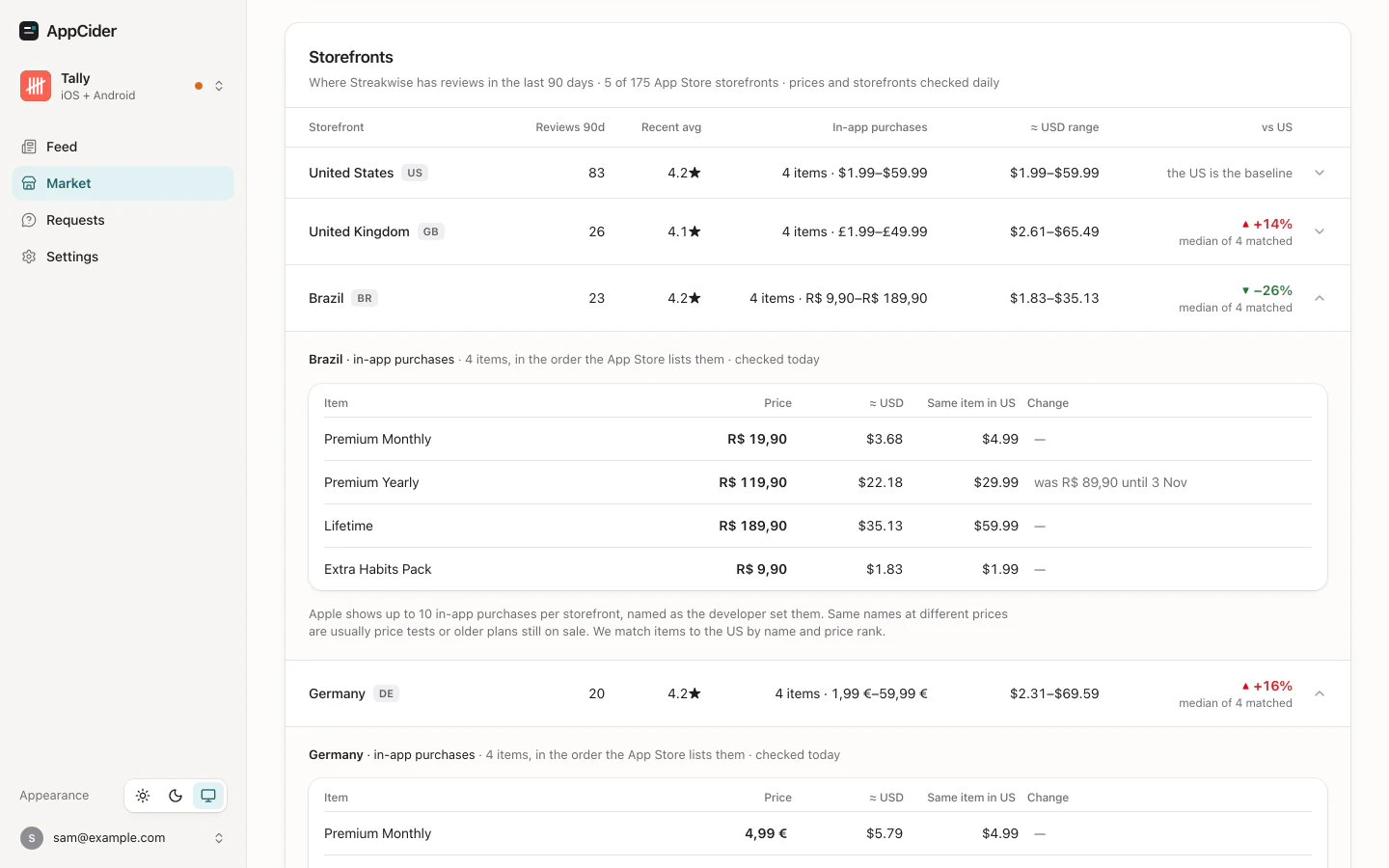
Each row shows the old and the new price with ≈ USD, so you can compare storefronts without converting anything yourself.
Questions
How much should I charge for my app?
Start from what your competitors charge for each item in the storefronts you sell in, and when they change it. AppCider records both, so you set your price against current numbers.
Can I see App Store prices by country for another app?
Yes. By hand, change the storefront code in the competitor's apps.apple.com address and read its in-app purchase list. AppCider does it for you: for each storefront where the competitor sells the app and has ratings, it keeps the in-app purchases the storefront lists, up to 10, with the price and its ≈ USD.
Does AppCider show competitors' prices on Google Play?
Yes, as a range. Google Play shows the cheapest and the most expensive in-app purchase per country, not the list, so that is what AppCider keeps, with ≈ USD.
Will AppCider tell me when a competitor changes a price?
Yes. A price change appears in your Feed that day, and with alerts on you also get an email. The first read sets the starting prices, and every change after it is reported.
Does AppCider test or set my prices?
AppCider shows what competitors charge and when they change it, and you set your own price. It reads public store pages, so your sales data stays with you.
See what your competitors charge, free for 14 days
Add a competitor and see its in-app purchase prices in the storefronts it sells in.
Start free trial 14 days free on Solo, then $39 a month. Add a card at signup; cancel before the trial ends and you pay nothing.